Set up your rooms and prices
At the end your booking page shows your rooms with photos and the right price for every night. Plan about an hour for a small house.
Before you start. Sign in as owner or manager. Have your room list, a few photos per kind of room (JPG, PNG or WebP) and your normal prices ready. Prices in Nuitina include VAT.
Rooms, photos and base price
Create a room category
Open «Settings → Rooms» and click «New category». Type a name such as Double room and a description for the guest. Set the maximum adults, children and guests, then add beds and amenities, separated by commas. Guests book a category, and your desk assigns the room.
Enter the base price
In the same window type the «Base price per night», per room and including VAT. It applies to every night unless a rule says otherwise. Keep «Bookable online» switched on, then click «Save».
Add photos
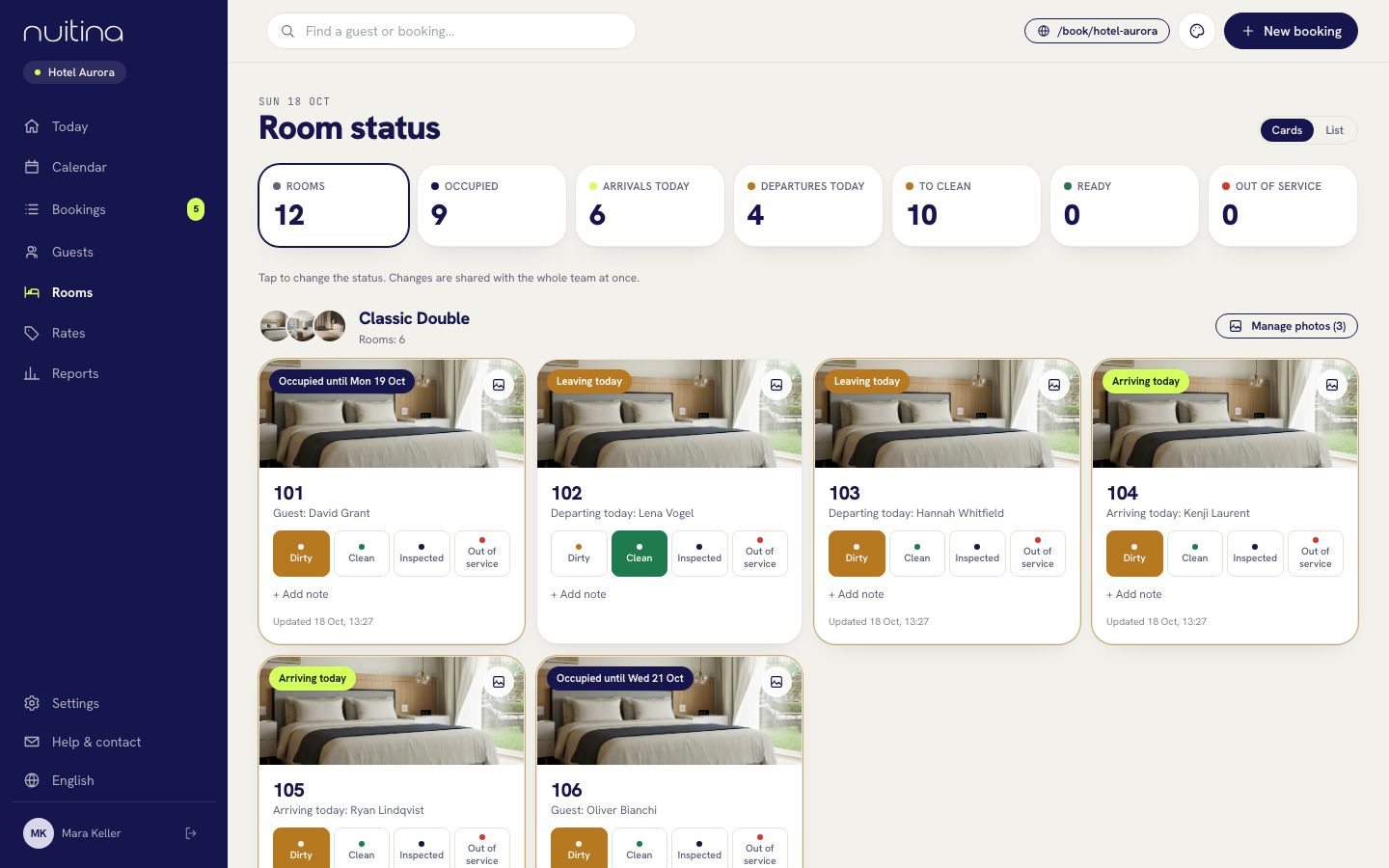
Photos can only be added once the category is saved. Click «Edit» on the category, or use «Manage photos» on the «Rooms» page. You can add up to 6 photos per category. The first one is the cover, and guests swipe through the rest on the booking page.
Add the rooms
Under the category, type a room number into the field «Room no.» and click «Add». Repeat for each room. Click a room name to rename it. The eye icon takes a room out of service and the bin deletes it.
Seasons, restrictions, tariffs and extras
Add a season or a weekend price
Open «Rates → Seasons and restrictions» and click «New rule». Choose «From» and «Until (inclusive)», tick «Set a different price» and enter the price per night. For a weekend price, switch on only Fri and Sat under «Weekdays (of the night)». Leave category and tariff on «All» to cover every room.
Set a minimum stay or a stop-sell
In the same kind of rule, type a number into «Minimum stay (nights)». Or switch on «Stop-sell» to close those dates online; your desk can still book them. «No arrival on these days» and «No departure on these days» help with changeover days.
Create tariffs
Under «Tariffs» click «New tariff». For a non-refundable rate, enter a name, type -10 under «Price change in %» and switch off «Free cancellation». «With breakfast» is only a note for the guest; you set the price yourself.
Add extras
Under «Extras» click «New extra». Enter a name and an amount, and choose whether it is charged per stay, per night, per person or per person and night. Choose its VAT rate, and keep «Also selectable online» on so guests can add it while booking.
Check the result
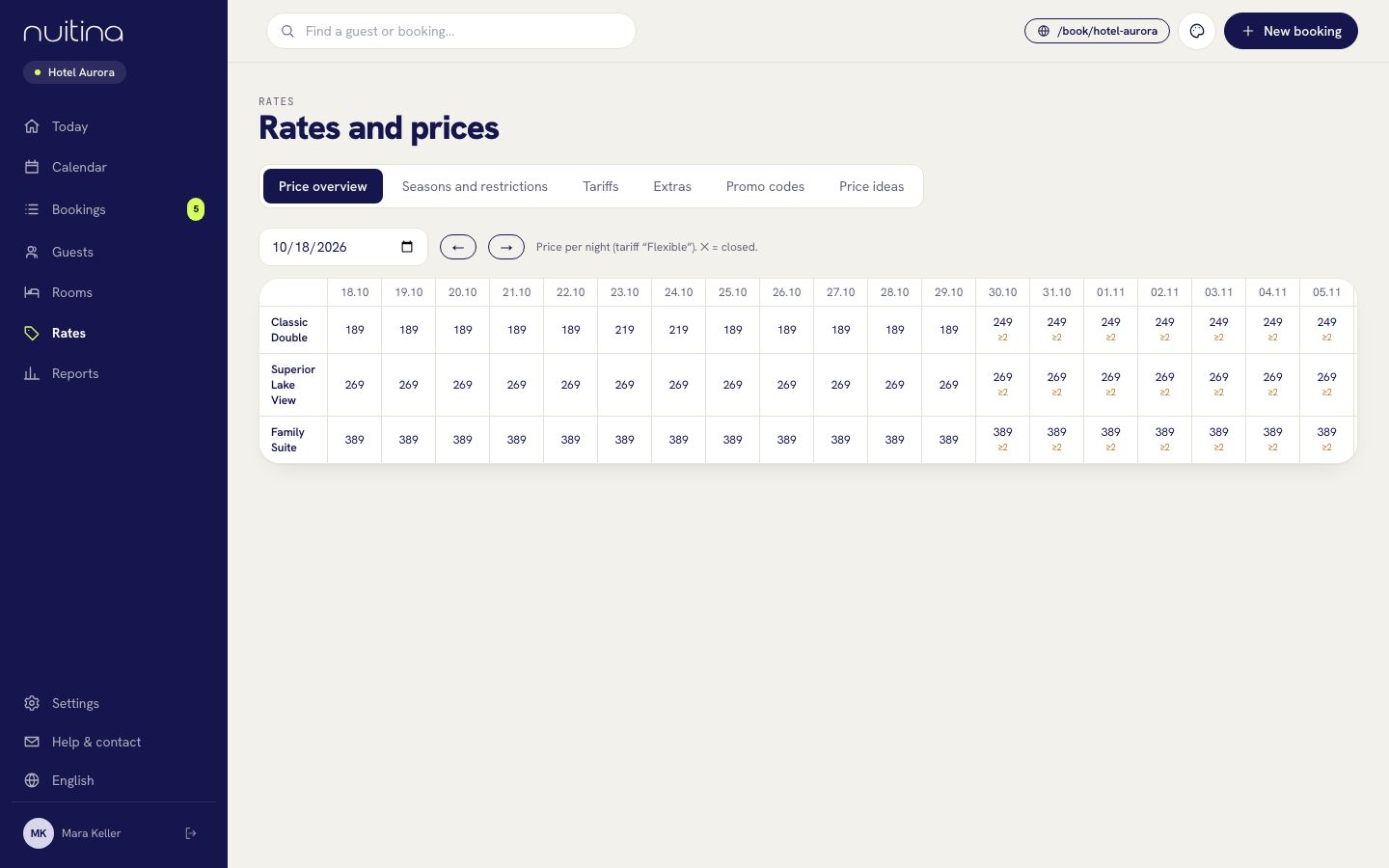
Open «Rates → Price overview». You see the price per night for every category, and ✕ marks closed nights. Then open your booking page and run a test search.
When two rules overlap, the more specific one wins: a rule for one category and tariff beats one for «All». If both are equally specific, the newer rule wins. Keep your rules few, and use the note field to name them, for example «Summer».
Questions people ask
Do guests choose a room or a category?
A category, such as «Double room». They see its photos and price. You or your team assign the actual room in the calendar.
Can I charge more for one special weekend?
Yes. Create a rule for just those dates with a different price. Because it is more specific than a season rule, it wins on those nights.
Can Nuitina suggest prices?
It can show ideas based on how full your house is. Open «Rates → Price ideas». Nothing changes by itself: «Apply» creates ordinary rules that you can edit or delete.
Can guests use a promo code?
Yes. Create codes under «Rates → Promo codes». Guests type the code on your booking page and get the discount on the room price.
Next steps
Embed the booking engine
Copy one code snippet from Settings → Website and paste it into WordPress, Wix, Squarespace, Webflow or plain HTML. No website? Share your booking page.
Read moreAccept online payments
Connect your own Stripe or PayPal account, choose deposit or full amount, and decide whether payment is required to hold the room.
Read moreBooking engine
A booking engine for your own website or your own Nuitina booking page: eight languages, photos, extras, promo codes and no commission.
Read moreStuck? Write to us
Send us your room list and we will tell you how we would set it up.