Put the booking engine on your website
At the end guests can book on your own website, either in the page or from a floating button. It takes about ten minutes. Without a website, you only share a link.
Before you start. Your rooms and prices should be set up (see Set up rooms and prices). You need permission to edit your website, and a plan of your website builder that allows custom code. Some plans do not.
Get the code and paste it
Open the code
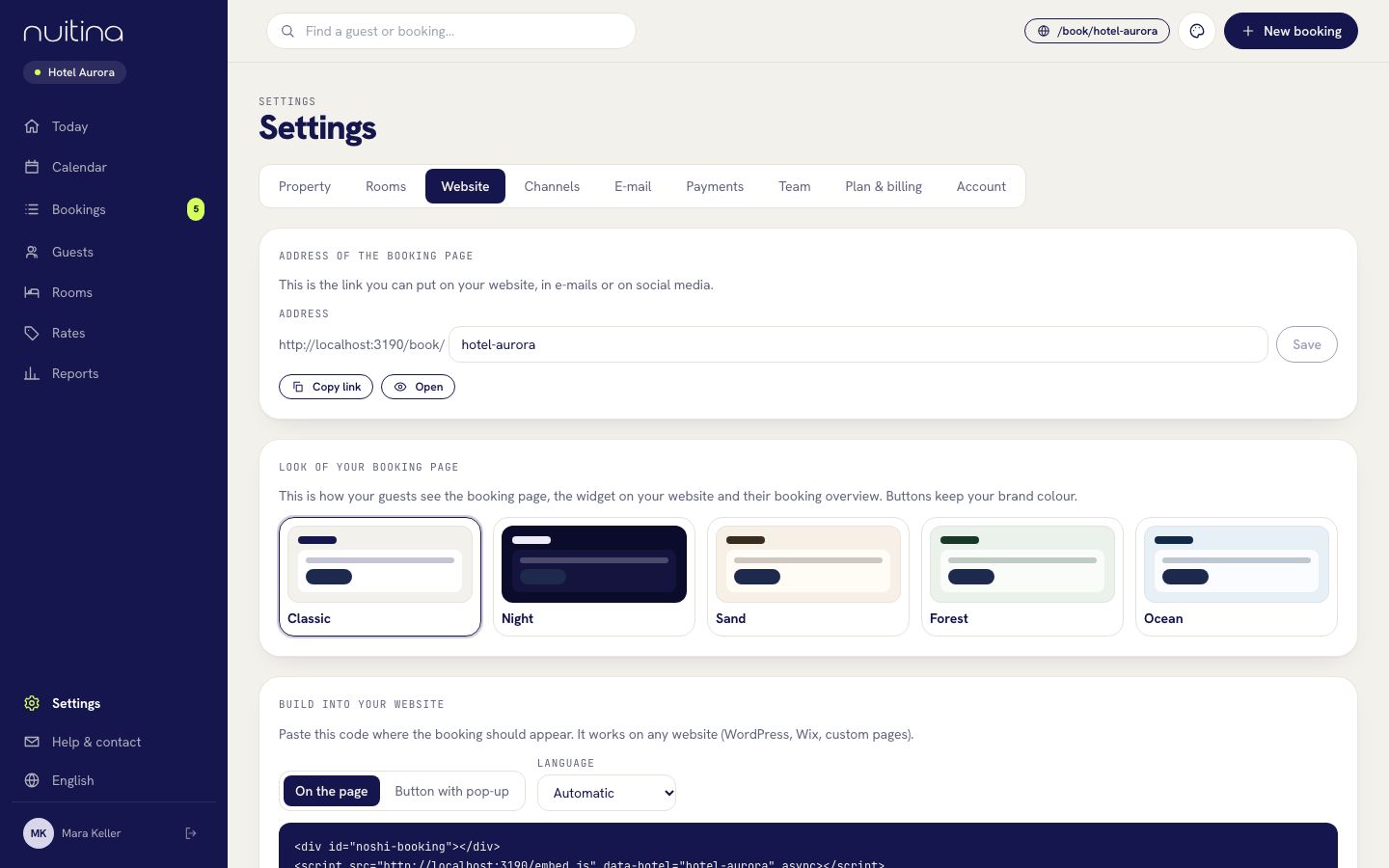
In Nuitina open «Settings → Website» and scroll to «Build into your website». The snippet already contains your hotel address.
Choose how it appears
«On the page» puts the booking form inside your page. «Button with pop-up» adds a floating button in the corner that opens the booking form in a window. For the button, type your own words under «Button text».
Choose the language
Under «Language» keep «Automatic», or pick one language to force it. Automatic follows the guest. A fixed choice adds data-lang to the code.
Copy the code
Click «Copy». The preview below shows how the booking page will look when embedded.
Paste it into your site
Paste the code where the booking should appear. The next section says where to find that place in WordPress, Wix, Squarespace and Webflow. For the floating button, the end of the page is best.
Publish and test on the live page
Publish the page and open it as a guest would, on your phone too. Run a search for dates. Preview modes in some builders do not run scripts, so judge the live page.
Optional: use your own button
With the floating-button code on the page, any button of yours can open the booking window by calling window.NoshiBooking.open(). To hide the floating button and keep only yours, add data-floating="false" to the script.
Inline: the booking form sits in your page
<div id="noshi-booking"></div>
<script src="https://booking.nuitina.com/embed.js" data-hotel="your-hotel" async></script>
Floating button (optional: data-lang, data-color)
<script src="https://booking.nuitina.com/embed.js" data-hotel="your-hotel" data-mode="button" data-label="Book now" data-lang="en" data-color="#1a4d3a" async></script>Where to paste it
Every builder uses its own names. These are the official help pages, which stay current when menus change.
- WordPress: add a «Custom HTML» block to the page and paste the code. See the Custom HTML block. On WordPress.com, script tags need a paid plan; see their guide.
- Wix: add an embed element and paste the code into its settings: Studio Editor, Harmony Editor. For the floating button, use «Custom Code» under Settings: embedding custom code.
- Squarespace: add a «Code» block and paste the code: Code blocks. For the button on every page, use code injection. JavaScript needs a plan that allows it.
- Webflow: add a «Code Embed» element: Custom code embed. For the button on every page, use site custom code, in the footer. Publish afterwards.
- Plain HTML: paste the code where the booking should sit, or just before the closing body tag for the button.
Some builders show embedded code in a box of fixed height. If the booking form looks cut off, make the box taller, or switch to the floating button. If nothing appears at all, the plan or the editor may block scripts. The pages above explain each case.
No website? Use your booking page
Open «Settings → Website». Under «Address of the booking page» you find your link, for example booking.nuitina.com/book/your-hotel. Click «Copy link» to copy it, or «Open» to look at it. Put it on your Google profile, social media, e-mail signature and business cards. You can change the last part of the address in the field «Address» and click «Save». A custom domain for the page is not available at the moment.
Questions people ask
Will it work on my website builder?
It works on any site that accepts a script tag. The script places your booking page in a frame on your page.
Can I change the colour of the button?
Yes. Add data-color with a colour such as #1a4d3a to the floating-button code. The colour of the buttons inside the booking form comes from «Brand colour» under «Settings → Property».
Do I have to paste the code again after I change prices?
No. The code only loads your live booking page, so prices, photos and rules are always current.
Can guests pay inside my website?
If you have connected Stripe or PayPal, yes. The payment page opens in the whole browser window. See Accept online payments.
Related
Booking engine
A booking engine for your own website or your own Nuitina booking page: eight languages, photos, extras, promo codes and no commission.
Read moreAccept online payments
Connect your own Stripe or PayPal account, choose deposit or full amount, and decide whether payment is required to hold the room.
Read moreRooms and prices
Add room categories, rooms and photos, then set base prices, seasons, weekends, minimum stay, stop-sell, tariffs and extras.
Read moreStuck? Write to us
Tell us which builder you use and we will point you to the right place.