Accept online payments with Stripe or PayPal
At the end guests can pay a deposit or the full amount when they book, straight into your own account. Plan about 20 minutes, plus the time Stripe or PayPal need for your account.
Before you start. Only the owner sees «Settings → Payments». You need your own Stripe or PayPal business account. Nuitina never touches the money and takes no commission; Stripe and PayPal charge their own fees, so check their price lists. Payments run in your house currency (see «Settings → Property»), and not every currency is supported for online payments.
Connect and switch it on
Set the deposit percentage
Skip this if guests should pay the full amount. For a deposit, open «Settings → Property», type a percentage under «Deposit in %» and click «Save».
Create a key in Stripe
In your Stripe dashboard open Developers, then API keys. Copy a secret key (sk_…) or create a restricted key (rk_…) with write access to «Checkout Sessions». Never use the public key that starts with pk_.
Connect Stripe
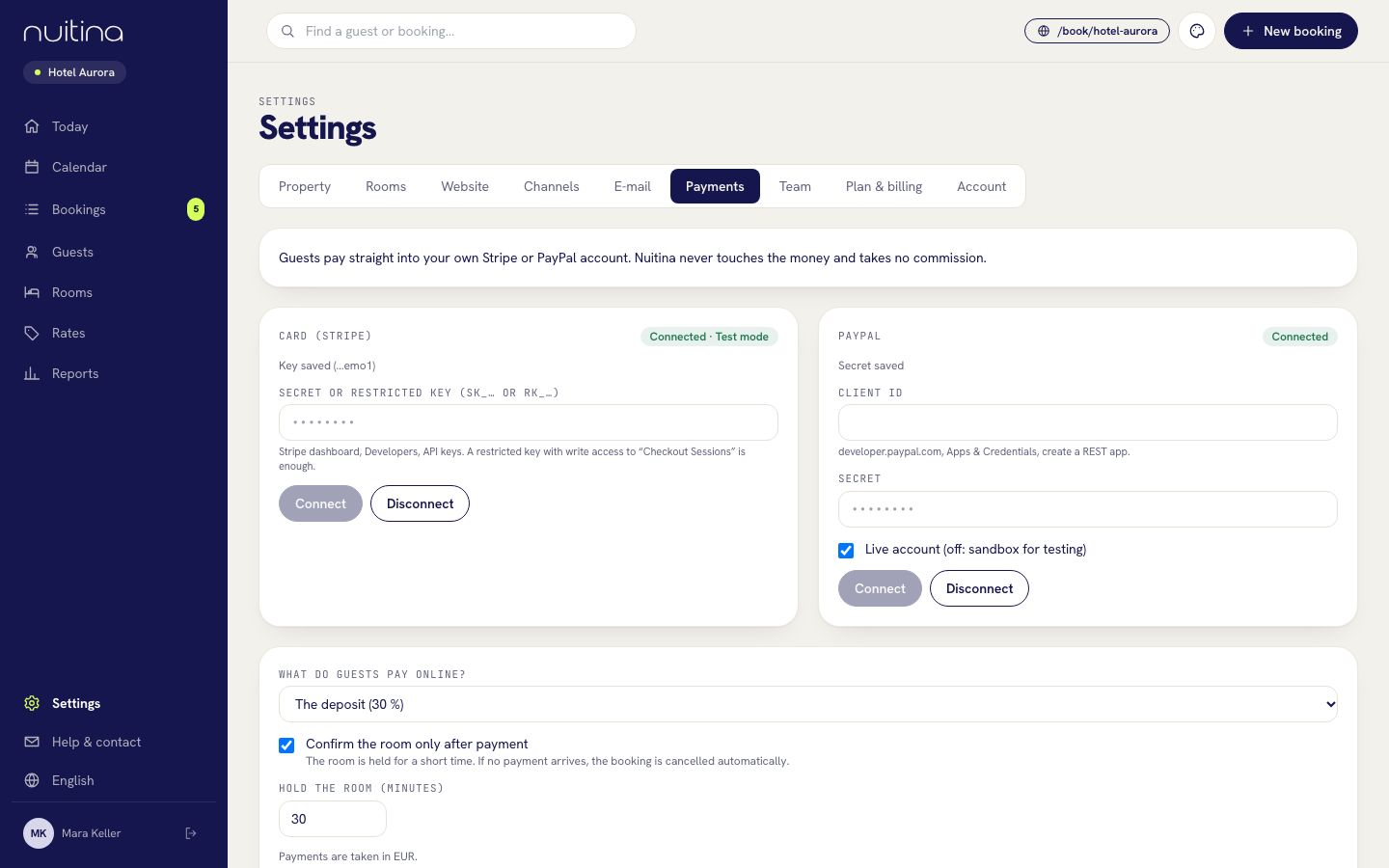
In Nuitina open «Settings → Payments». Under «Card (Stripe)» paste the key into «Secret or restricted key» and click «Connect». The label «Connected» appears, and with a test key «Test mode» too.
Connect PayPal (optional)
At developer.paypal.com open Apps & Credentials and create a REST app. Copy its Client ID and Secret into «Client ID» and «Secret» in Nuitina, and click «Connect». Keep «Live account» off while you test (sandbox), and switch it on for real payments.
Choose what guests pay
Under «What do guests pay online?» choose «Nothing, just reserve», «The deposit», or «The full amount».
Require payment, or not
Switch on «Confirm the room only after payment» to make payment required. The room is held for the minutes you set under «Hold the room (minutes)», from 15 to 240. If no payment arrives in time, the booking is cancelled automatically. With the switch off, guests can pay but do not have to.
Save
Click «Save» under the settings. Online payment is now live for new bookings.
What the guest sees
After choosing a room, the guest gets a box «Pay now» with the amount due («Deposit» or «Amount due») and the buttons «Pay by card» and «Pay with PayPal». If payment is required, a note says the room is held until a given time. The guest pays on the page of Stripe or PayPal and comes back to the booking page with a message «Payment received». On your side the payment appears on the booking as paid by Stripe or PayPal. Nuitina checks with Stripe or PayPal about every minute and you set up no webhooks.
Refunds
Nuitina does not send money back to the guest. Refund in your Stripe or PayPal dashboard. Then open the booking. While it is open and not fully paid, «Record payment» takes a negative amount as a refund. If that button is not shown, write the refund into the booking's «Internal note» so your books match.
Test first. Connect a Stripe test key (it starts with sk_test_ or rk_test_) and make a booking on your own booking page with one of Stripe's test cards. For PayPal, use sandbox credentials with «Live account» off. Afterwards cancel the test booking, paste your live key and click «Connect» again. A test payment is recorded on the booking like a real one.
Questions people ask
Where does the money go?
Straight into your Stripe or PayPal account. Nuitina never holds it and takes no commission.
Can I use both Stripe and PayPal?
Yes. If both are connected, the guest sees both buttons.
Do I have to enter a webhook in Stripe?
No. Nuitina asks Stripe or PayPal whether a checkout was paid, using your key.
Can I disconnect?
Yes. Click «Disconnect» in the Stripe or PayPal box. Open bookings keep their data.
Related
Online payments
Let guests pay the deposit or the full amount online, straight into your own Stripe or PayPal account. Nuitina takes no commission.
Read moreEmbed the booking engine
Copy one code snippet from Settings → Website and paste it into WordPress, Wix, Squarespace, Webflow or plain HTML. No website? Share your booking page.
Read moreTourist tax, VAT, invoices
Enter VAT and tourist tax once in Settings → Property, see how they show on the guest's price and on invoices, and print an invoice and the registration form.
Read moreStuck? Write to us
Tell us what Stripe or PayPal shows you and we will help.