Online check-in: guests register before they arrive
At the end guests fill in their registration at home, and at the desk they only sign. Setting it up takes about five minutes, and then it runs on its own.
Before you start. Online check-in is available for confirmed bookings, until you check the guest in. The booking needs a guest e-mail address if you want the link sent by e-mail. Rules on guest registration differ from place to place. Ask your municipality which details you must collect and keep.
Switch it on and send the link
Check the reminder mail
Open «Settings → Property», scroll to «Online booking» and check that «Write to the guest the day before arrival» is switched on. This friendly reminder carries the link «Check in online». Click «Save» if you changed anything.
Check how mails are sent
Mails go out from your house mailbox. Under «Settings → E-mail» you can enter its details and use «Send test mail» to see that they arrive. Without a mailbox of your own, the operator sends them.
Send the link yourself when you want to
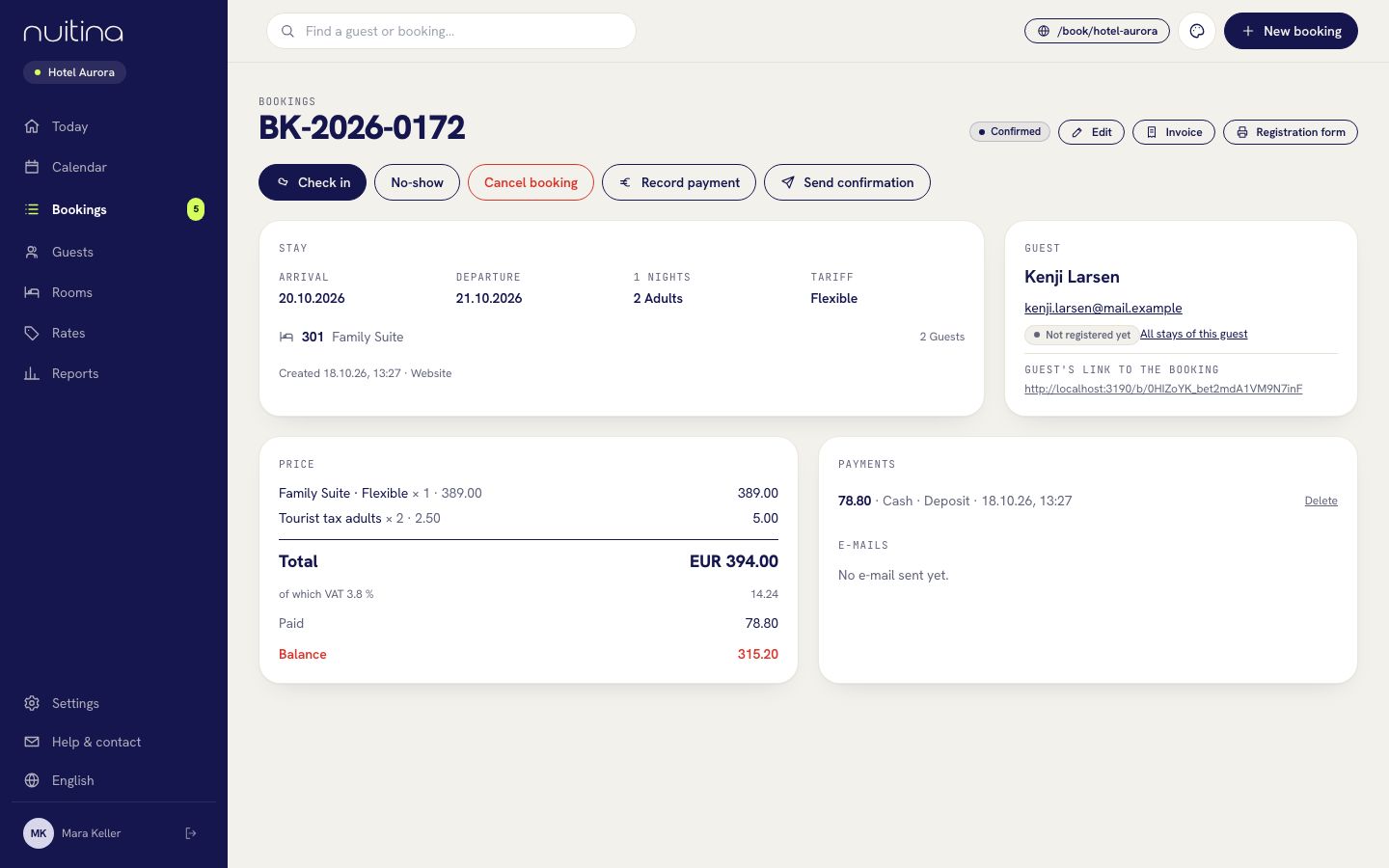
Open a booking. On the guest card, «Guest's link to the booking» shows the link. Click it to copy it, and send it by e-mail or message. On that page the guest finds the section «Check in online». Every confirmation mail also contains this link.
See who has registered
On each booking, the guest card shows «Registered online» or «Not registered yet». The guest's address, date of birth and nationality are also saved on the guest.
Print the registration form at arrival
Open the booking and click «Registration form», then «Print». Everything the guest entered is already on it, and a line says who confirmed it online and when. The guest checks it and signs under «Guest's signature».
Check the guest in
Click «Check in» on the booking as usual.
What the guest does
The guest opens the link and clicks «Fill in now» in the box «Check in online». The form asks for date of birth, nationality (as a country code), street and number, postcode, city, country, phone, an ID or passport number (optional) and the expected arrival time (optional). For a booking with more than one person, the guest also adds each companion with name, date of birth and nationality. The guest ticks a box to confirm that the details are correct, types their own name, and clicks «Send registration». The page then says «You are registered», and «Change details» lets the guest correct it. Only the hotel sees these details.
Mention online check-in in your confirmation text and on your website. Guests who register early save you the paperwork at the desk, and the arrival time they give helps you plan the day.
Questions people ask
What if a guest does not fill it in?
Nothing breaks. Print the registration form at the desk as before: it has empty lines for the guest to fill in by hand.
Can the guest change the details afterwards?
Yes, with «Change details», as long as the booking is confirmed and you have not checked the guest in.
Does the guest need an account?
No. Only the booking's private link is needed, and the guest never signs in anywhere.
Does it also work for bookings I made at the desk?
Yes. Copy the guest's link from the booking and send it. If the booking has an e-mail address, the reminder mail sends it on the day before arrival.
Related
Online check-in
Guests fill in the registration form online before they arrive. Add upsells at booking and friendly e-mails before and after the stay.
Read moreTourist tax, VAT, invoices
Enter VAT and tourist tax once in Settings → Property, see how they show on the guest's price and on invoices, and print an invoice and the registration form.
Read moreTeam and roles
Give every person their own login and choose one of four roles: owner, manager, reception or housekeeping. See what each role can open and do.
Read moreStuck? Write to us
Tell us what your guests see and we will help you fix it.